
Guides & Tutorials
Sharing and privacy
Manage who can find your project, who can view your project, and who can contribute to it.
Summary
Mapperoni offers three levels of control for sharing and privacy.
- Project Visibility: Decide if the project start page should be public or not.
- Access Control: Decide who can continue beyond the start page to view subsequent pages.
- Contribution Control: Decide if the project is currently accepting new responses, and how many responses per user.
All of these settings are found in the Publish and share menu which is found under Edit Project > Publish.
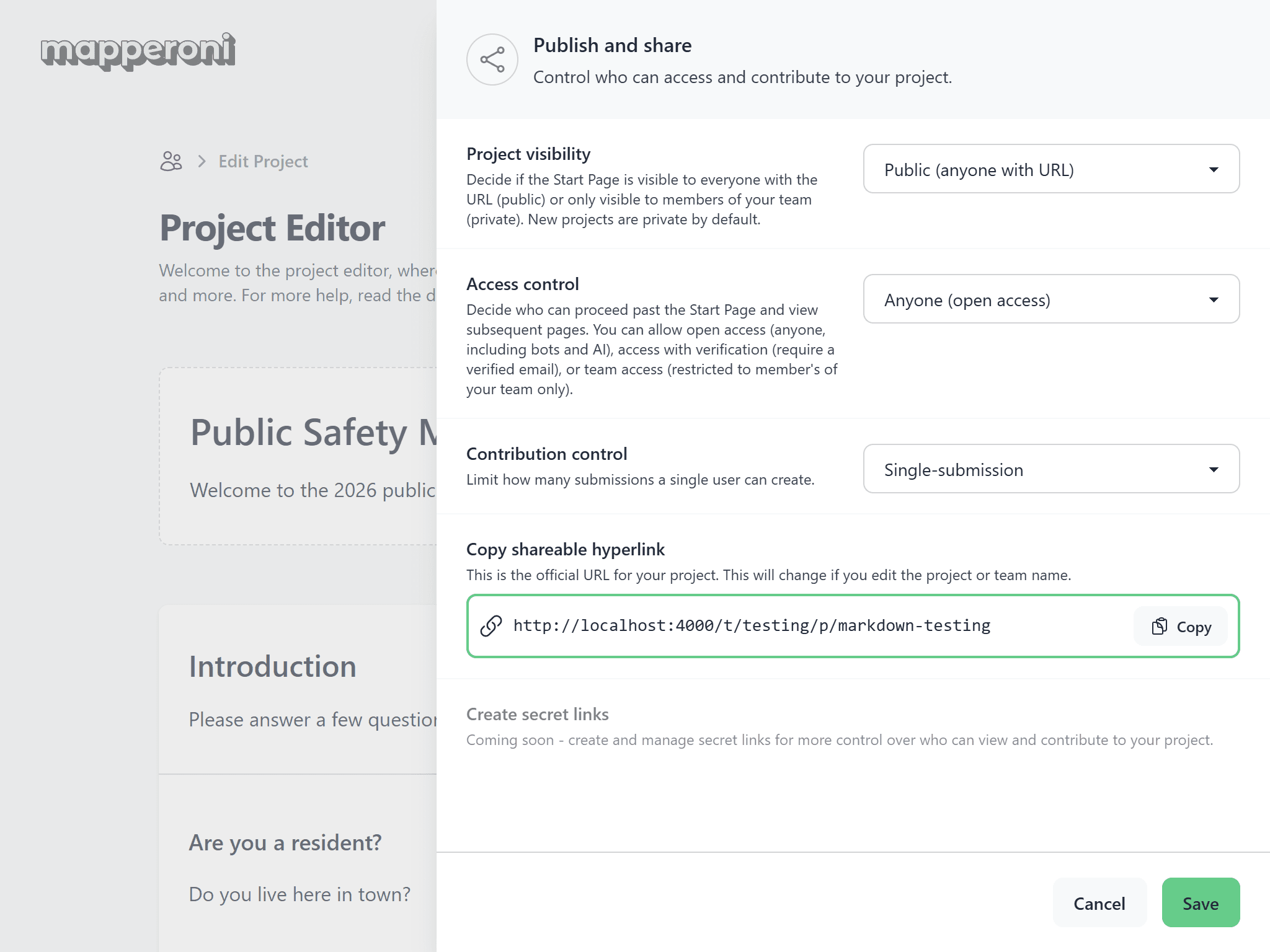
Project visibility
The project visibility setting controls whether the Start Page is visible to the public. The two supported options are:
- Private (team only)
- Public (anyone with the URL)
The start page is always the first page you see when you navigate to your project URL. As an example, view our public Demo Project.
Private (team only)
This is the default for all new projects. It prevents users from seeing the Start page unless you have already added them to your team.
- Users who are not logged in will be redirected to the log in screen.
- Users who are logged in but are not members of your team will see a message that says "Unauthorized".
Public (anyone with the URL)
This is the recommended setting for most projects. This allows the start page to be indexed by search engines which makes them more easily discoverable. This also allows AI agents and new users to read about your project. Avoid sharing sensitive information (emails, personal information, etc.) on the Start page if it is public.
Access control
The access control setting restricts who can proceed past the start page to view subsequent pages. It only applies to Public projects. You can imagine this setting is like the "doorman" or "bouncer".
The 3 options for access control are:
- Anyone (open access)
- Verified email required
- Team members only
Anyone (open access)
Allow everyone who clicks the Start button to continue on to the next page, without any authentication.
Verified email required
Force users to log in to their account, which requires that they have an active and verified email.
Team members only
Force users to log in and require that they are a member of your team. If they are authenticated but not authorized, they will see a "403 Access forbidden" error.
Contribution control
The contribution control setting decides who can submit responses, how many they can submit, and whether or not they can edit a previous submission.
The four supported options are:
- Disabled (read-only). This is the default for new projects.
- Single-submission
- Multi-submission
- Editable submission
When combined with the right Access control and Project Visibility setting (see above), you can tailor your project and forms to support almost any use-case.
Disabled (read-only)
No new contributions. Field inputs are visible, but disabled.
Single-submission
In single-submission mode, an individual respondent can only create one submission. They are restricted from creating a second submission after they reach the conclusion page.
A prior submission cannot be edited or viewed again by the respondent after they reach the conclusion page.
You can always re-enable access or edits for prior respondents by changing the contribution mode at a later date.
Preventing repeat submissions
The best way to prevent repeat submissions from the same individual is to set Access control to "Verified email required" or "Team members only". If the access control is set to "Public", Mapperoni will use browser cookies to try and prevent a second submission on that device. This is not optimal because it can be easily circumvented and because it can cause confusion if multiple respondents wanted to share the same device.
Multi-submission
In multi-submission mode, the same respondent can create an unlimited number of new submissions. A prior submission cannot be edited or viewed again by the respondent after they reach the conclusion page.
- This mode is ideal for accepting multiple responses on shared devices (public computers etc.)
- If you change your mind and switch to "Editable submission" mode, and you already accepted multiple submissions on the same account or device, only the most recent response can be edited.
Editable submission
In this mode, the same respondent can return to edit their submission, even after they reach the conclusion page. Their previous response will be fetched and prefilled for them.
For editable-submission mode we strongly recommend setting Access control to "Verified email required" or "Team members only" and NOT to "Anyone (open access)". If you set the contribution mode to "Editable submission" and Access control to "Anyone (open access)", it will allow anyone who can access the same device to view the previous submissions and edit them. This could leak sensitive personal information or harm the integrity of the data you collect.
Important recommendation
For editable-submission mode we strongly recommend restricting Access control to "Verified email required" or "Team members only". If you disregard this advice, and a user chooses to contribute anonymously, their response may be lost when they clear browser cookies or switch devices. In addition, you risk leaking sensitive personal information to any other individuals who share their device with them.
Drafts & attempts
Respondents can always make revisions to their inputs until they reach the conclusion page. When they reach the conclusion page, their response is considered "submitted". The system tries to preserve incomplete submission attempts so that respondents will not lose their progress if they refresh, disconnect, or close the browser tab. If users are logged in, they can even continue from another device.
If the respondent is not logged in (e.g. for projects with Access control: Anyone (open access)), progress may be lost when their browser cookies are cleared, blocked, or expire.