
Guides & Tutorials
Quickstart
This guide explains how to create your first project so you can start collecting data as quickly as possible.
Imagine you work for the city manager, a neighborhood homeowners association, or a public utility department. You want to create a "Get It Done" or "Fix It Ticket" program for your neighborhood. It should include a map where respondents can mark issues, and a form where the respondents can add more information to their report.
Let's build it with Mapperoni.
1. Log in and create a team
You must create a team for yourself. The team is where all your projects will live.
2. Create a project
You need a name, so that you can always find your project by URL. For example, if you name your project "get-it-done", the URL will become:
app.mapperoni.com/t/my-team/p/get-it-done
You can always change the project name. Just beware that changing the name will break any hyperlinks you've shared already.
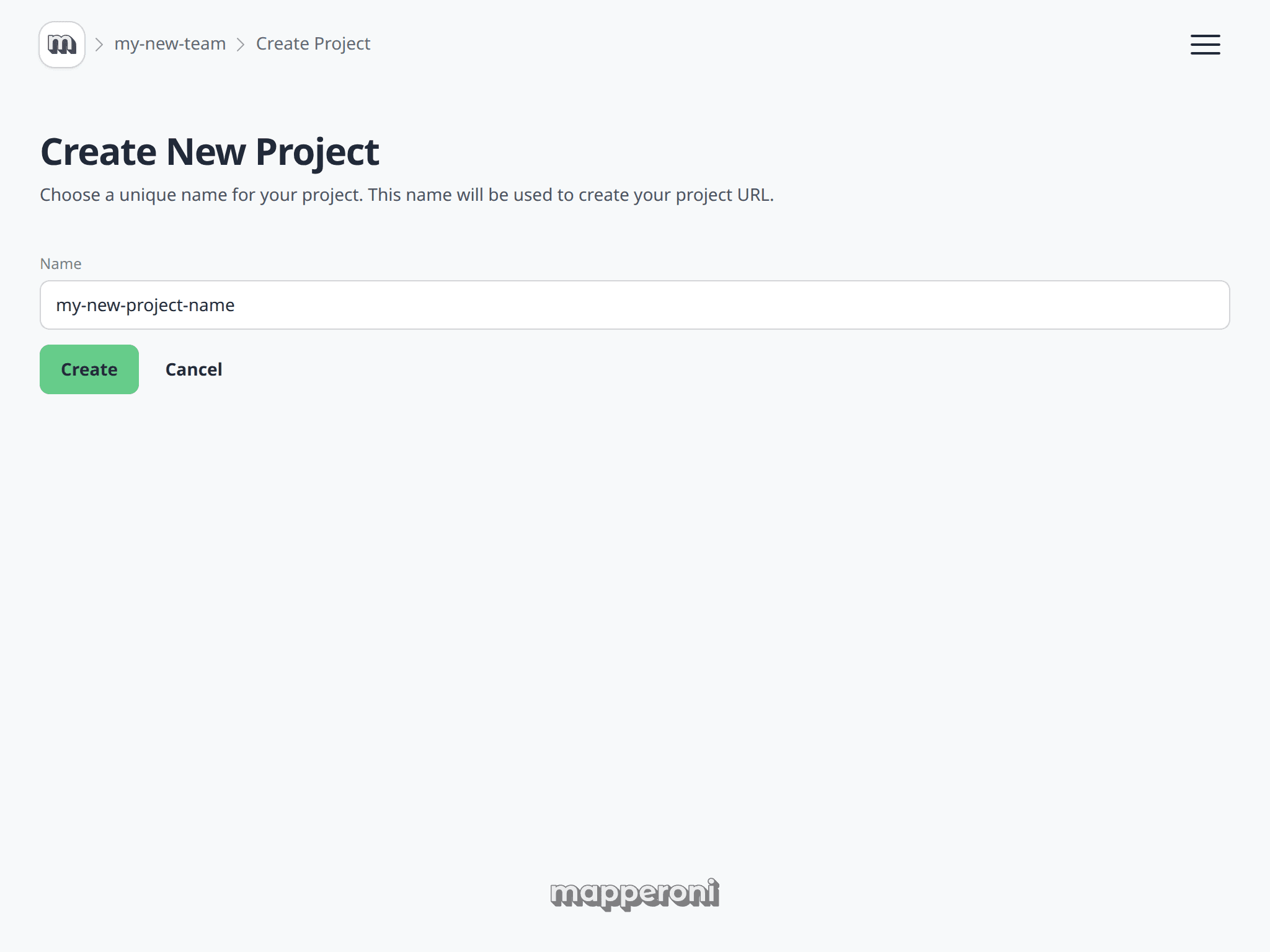
3. Configure your project
Enter the project editor. The first thing to edit is the Title and Description of your project. This is the content your respondents will see when they visit your project URL. Your edits are saved immediately.
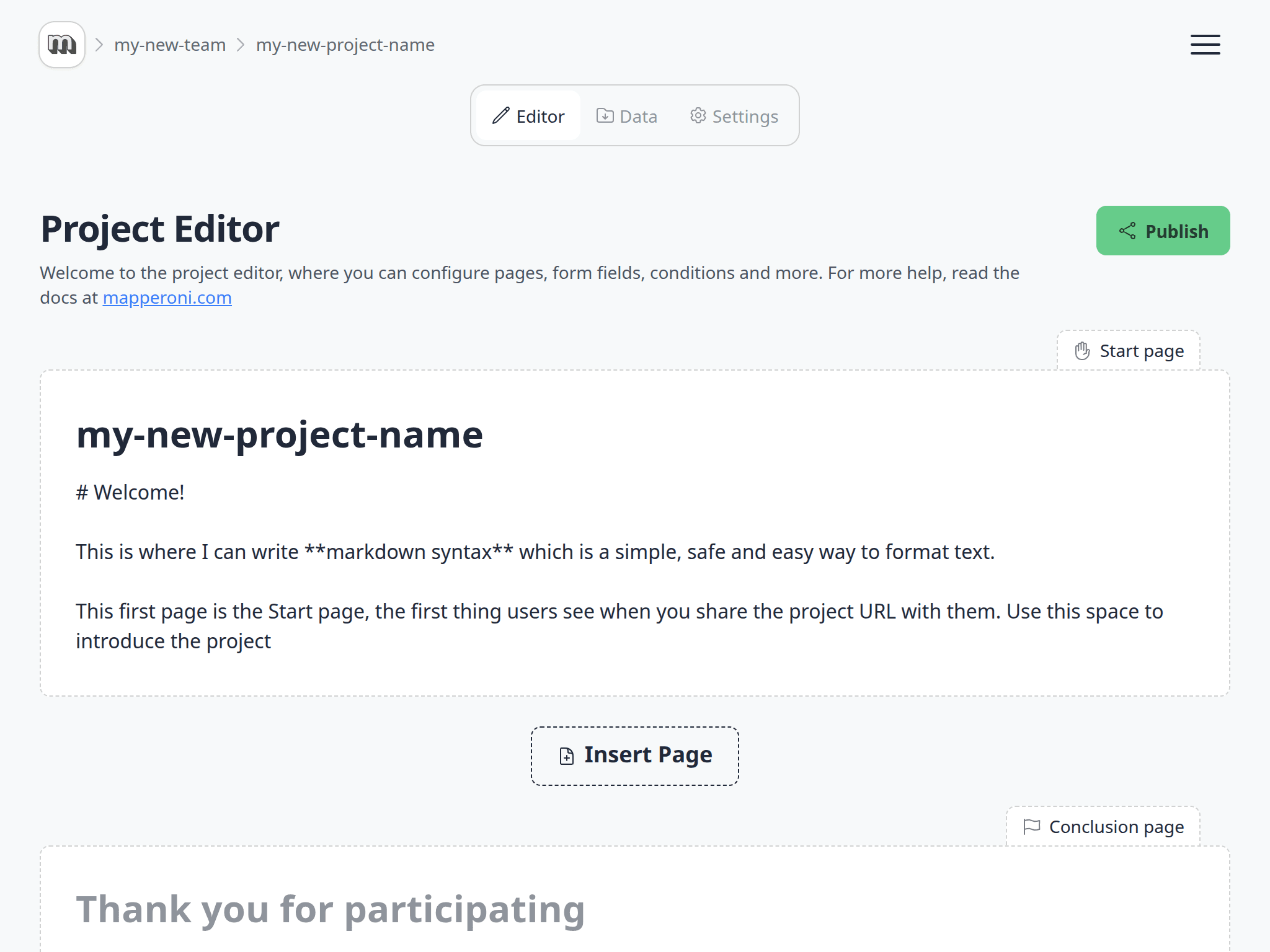
Your project description supports markdown, which allows you to add headings, hyperlinks, images and more.
4. Add Pages to your project
Click the "Insert Page" button to add two pages.
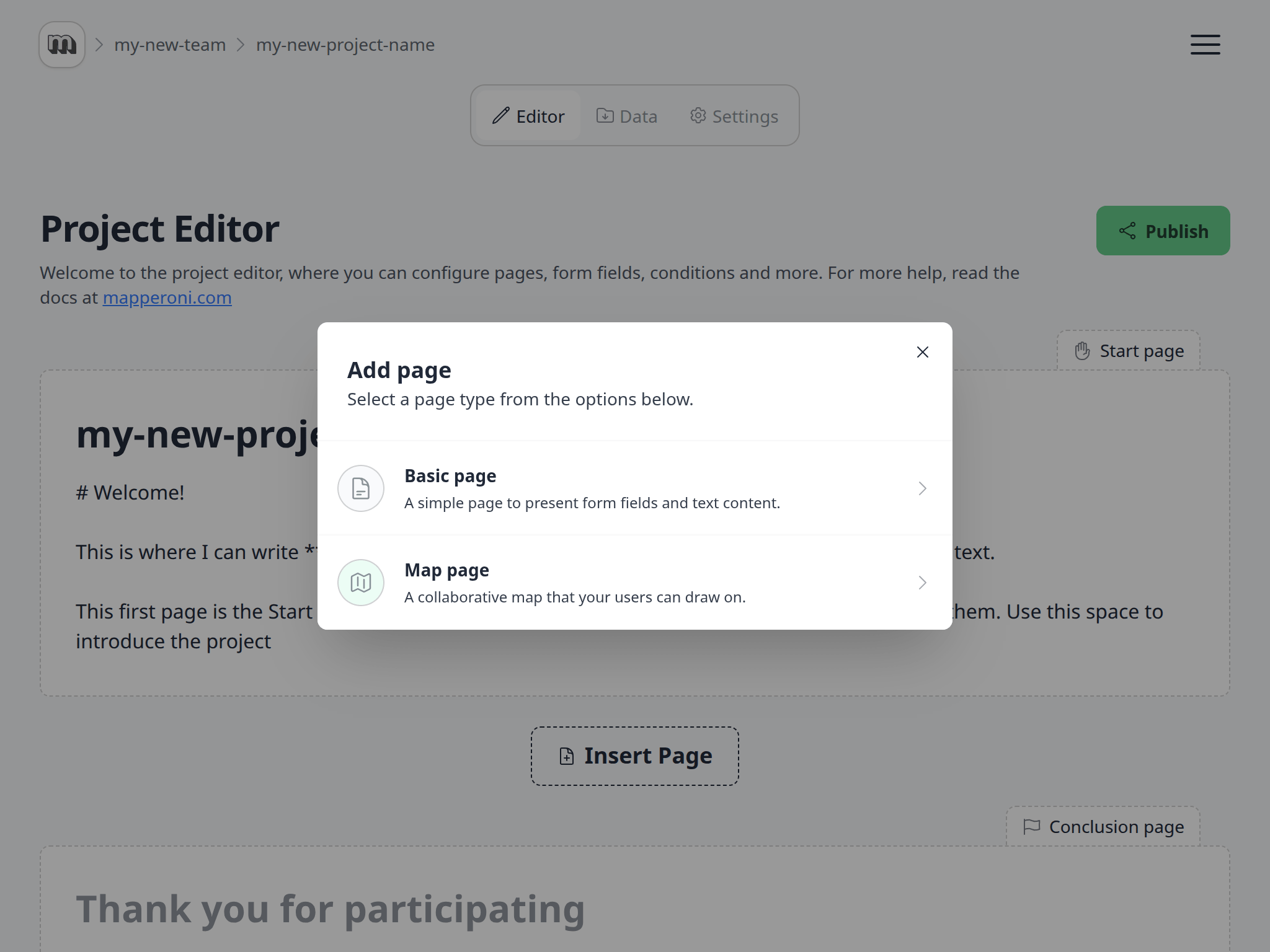
- A Basic Page, where we will ask users some basic questions.
- A Map Page, where we will ask users to draw on the map.
Note: The Start Page must always be first, and the Conclusion page must always be last.
5. Add Fields to your pages
We want to collect email addresses so we can respond directly to the users who submit a Get It Done ticket. For this, add an Email field to the Basic Page.
We also need to add some layers to our map. Layers are a way of categorizing and structuring the map data that our users submit.
We want 3 Point layers. One called "Repairs", another called "Cleanups" and a third layer called "Other issues".
For each layer, add a Description field. Ask the user to describe their submission.
6. Publish and share
When you are ready to start collecting responses, click the Publish button. Make the project publicly visible, and accessible to users with a verified email. To learn more, read our docs page on sharing and privacy.